Mermaid PNG vs SVG vs PDF: Which Export Format Should You Use?
Choose PNG for slides and applications that need an image, SVG for scalable website diagrams and graphic editing, and PDF for documents, printing, or Mermaid with accompanying Markdown. The best Mermaid export format depends on where the diagram will go next, how large it will appear, and whether somebody needs to edit it.
Mermaid PNG vs SVG vs PDF is a trade-off between predictable appearance, scalability, and document layout. Below, you can compare the same diagram in all three formats and go straight to the matching converter once you have chosen.
Mermaid PNG vs SVG vs PDF at a glance
| What matters | PNG | SVG | |
|---|---|---|---|
| Best destination | Slides, messages, image-only applications | Websites, scalable illustrations, compatible vector editors | Reports, handouts, print, document attachments |
| Enlarging the diagram | Limited by pixel dimensions | Vector geometry stays sharp | Vector content stays sharp; raster content has pixel limits |
| Text and fonts | Appearance baked into pixels | Font availability and renderer can affect labels | Depends on font embedding and export method |
| Editing after export | Image editing; no Mermaid structure | Shapes and labels where the editor supports them | Document edits in a PDF editor; keep source for diagram changes |
| Markdown explanations | Separate image to insert | Separate diagram to embed | Can include headings, prose, code, and diagrams together |
| MarkDone converter | Mermaid to PNG | Mermaid to SVG | Mermaid to PDF |
There is no universal file-size winner. A small vector flowchart can be compact, while a complex SVG with many elements or embedded assets can be larger than expected. Higher-resolution PNGs contain more pixels; multi-page PDFs contain more document content. Compare the actual exports when size matters.
The same Mermaid diagram as PNG, SVG, and PDF
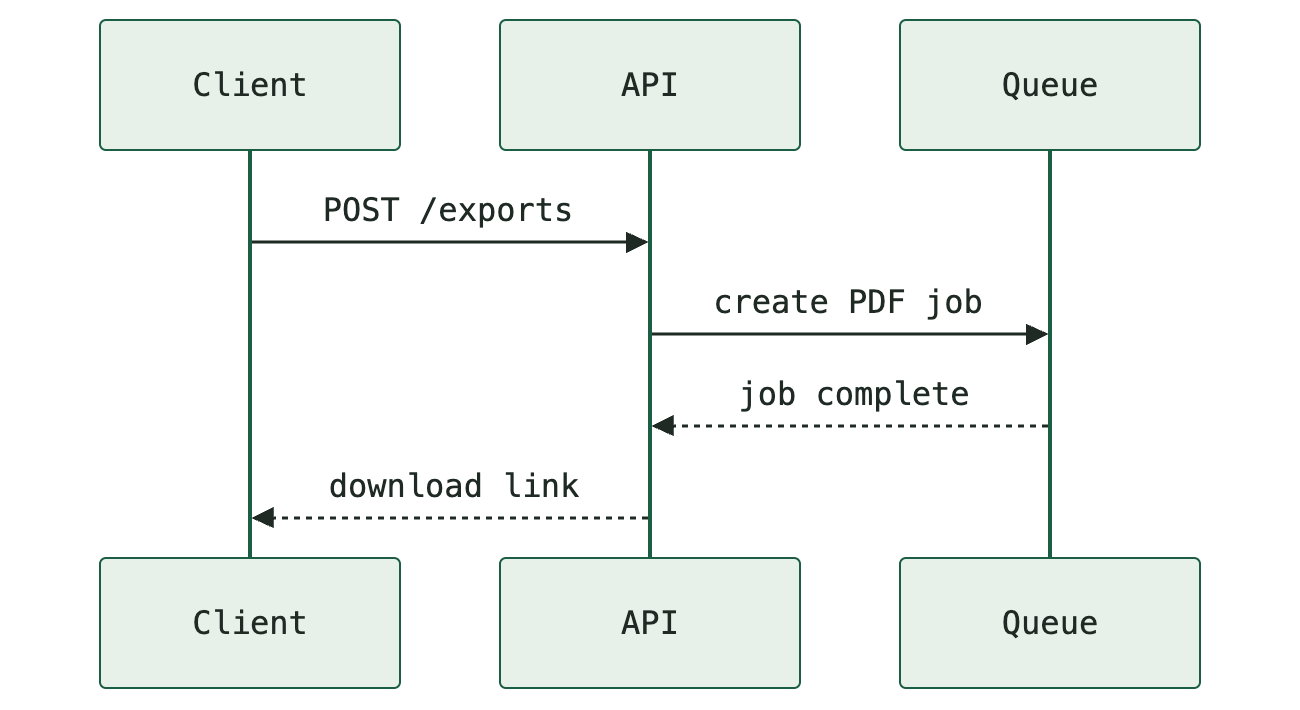
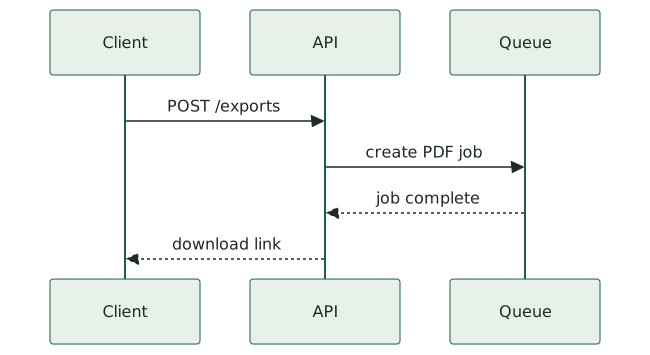
This short API sequence is deliberately identical across the three downloads: the same participants, messages, and source. It makes the format differences easier to inspect without changing the diagram itself.
sequenceDiagram
  participant Client
  participant API
  participant Queue
  Client->>API: POST /exports
  API->>Queue: create PDF job
  Queue-->>API: job complete
  API-->>Client: download link
Download the editable Mermaid source. These sample exports were created with MarkDone from this source.
Download example PDF Open Mermaid to PDF
The web previews above fit the article width, so they may look almost identical here. The meaningful differences appear when you enlarge the downloaded files, insert them into another application, or print them.
Choose PNG for presentations and image-only applications
PNG is a raster image: its lines, arrows, and text are stored as pixels. It is a practical choice when the destination asks for an image file, or when you want the recipient to see the labels exactly as they were rendered without depending on their installed fonts.
For presentations, PNG is useful when the slide application or sharing workflow cannot reliably handle SVG. For chat messages, ticket attachments, and document editors, it also gives you a straightforward image to insert. Keep the original Mermaid source because a PNG does not preserve editable nodes and relationships.
How much PNG resolution do you need?
Start from the size at which the diagram will be displayed. A diagram shown at 900 CSS pixels wide on a high-density screen may benefit from an image around 1,800 pixels wide. A 2× export doubles both width and height, giving four times as many pixels as 1×; it does not mean four times the compressed file size.
For print, work from the intended physical width. A six-inch-wide placement at 300 pixels per inch needs about 1,800 pixels across. That is a planning example, not a requirement for every printer. Enlarging a small PNG afterward cannot recover missing detail, and changing only its DPI metadata does not add pixels.
MarkDone offers 1× and 2× PNG exports for free. Pro adds 4× and 8× within export size limits. Check the actual pixel dimensions in the export dialog; preview zoom does not change the downloaded resolution. MarkDone PNG exports use a white background, so plan for that when placing them on dark slides.
Use the Mermaid to PNG converter when your destination needs an image and you know its display size.
Choose SVG for websites, scaling, and further editing
SVG stores vector geometry rather than a fixed grid of pixels. Diagram lines and shapes can scale up without the pixelation you get from enlarging a PNG. This makes SVG a strong choice for responsive website illustrations and diagrams that will appear at several sizes.
A compatible vector editor can let you adjust colors, shapes, or labels after export. However, exported artwork is not the same as the original Mermaid model. Keep the .mmd or .mermaid source for structural changes, such as adding a participant or reconnecting a flow.
Check fonts and SVG compatibility
SVG text may depend on a font being available in the destination environment. If it is missing, a substitute font can change the appearance and spacing of labels. Do not assume every SVG automatically embeds its fonts or converts text to paths.
Mermaid SVGs can also contain HTML labels inside foreignObject elements. Browsers and graphic editors do not necessarily interpret those labels in the same way. A diagram that looks correct in a browser can lose text or formatting when imported elsewhere. MDN explains how SVG foreignObject embeds content from another namespace.
Open the exported SVG in the actual website or editor before committing to the format. Check line wrapping, symbols, arrowheads, and labels. If the target application struggles with the SVG, PNG can preserve the rendered appearance; PDF may be better for a document deliverable.
Use the Mermaid to SVG converter for scalable artwork, then check compatibility in the application that will receive it.
Choose PDF for documents, print, and Mermaid with Markdown
PDF is the useful choice when the output is a document: a report, technical handout, print-ready attachment, or explanation with several diagrams. It gives the diagram a page layout with margins and orientation rather than leaving the recipient to place an image themselves.
PDF can contain vector drawing instructions, raster images, or both. A diagram exported through a vector pipeline can stay sharp when enlarged, but saving a screenshot inside a PDF does not make it vector artwork. Inspect the downloaded output and avoid promising unlimited sharpness based on the file extension alone.
Page fit matters as much as sharpness
Landscape often suits wide sequence diagrams and left-to-right flows; portrait often suits top-to-bottom flowcharts. Either way, a vector diagram can still be unreadable if a large system map is squeezed onto a small page. Shorten labels, split a dense diagram, or give it a larger page area.
If your issue is cropped nodes or tiny text, see the dedicated guide to exporting Mermaid diagrams to PDF without cropping or blurry output. This comparison helps you choose the format; that guide focuses on getting the PDF layout right.
Keep the diagram with its explanation
For accompanying Markdown, put the Mermaid source in a fenced mermaid block below a heading and a short explanation. Export the whole document so the diagram travels with its context:
# Export request

The API returns a download link after the queued job completes.

```mermaid
sequenceDiagram
  Client->>API: POST /exports
  API->>Queue: create PDF job
  Queue-->>API: job complete
  API-->>Client: download link
```
The Mermaid to PDF converter accepts Mermaid and Markdown containing Mermaid blocks. For a document centered on headings, prose, and code, you can also use Markdown to PDF. PNG and SVG exports provide diagram images; they do not replace the surrounding prose with a complete document.
Choose the format by where the diagram will go
- A slide deck: use PNG for predictable image insertion; consider SVG if the slide application handles your exported labels correctly and you need to resize it.
- A responsive website: use SVG for scalable geometry. Use PNG when the publishing system accepts only raster images or the SVG rendering causes problems.
- A printed report or handout: use PDF and choose an orientation that leaves the labels readable at the final page size.
- A graphic editor: try SVG, check imported text and shapes, and retain the Mermaid source for logical changes.
- A technical explanation with Markdown: export a PDF containing the text and diagrams together.
Keep the Mermaid source as your editable master. Export the format your reader's application needs, then check that file at its intended size.
Export PNGExport SVGExport PDF
Need a working diagram to start from? Browse our editable Mermaid examples for approval workflows, API requests, and CI/CD pipelines, with code and downloads in all three formats.
Common questions about Mermaid export formats
Is SVG better than PNG for Mermaid?
SVG is better when you need scalable vector artwork and the destination renders it correctly. PNG is better when you need a widely usable image with the rendered fonts baked in. Pick by destination, not by assuming one format is always superior.
Why is my Mermaid PNG blurry?
The image may be displayed larger than its pixel dimensions support. Export more pixels before inserting it, or use SVG for a compatible scalable-image destination. Increasing preview zoom or stretching an existing PNG does not improve the original image's resolution.
Does PDF always preserve vector diagrams?
No. A PDF can contain a screenshot or other raster image. Sharpness depends on the exporter and the content it places in the PDF. A vector export also needs a readable page layout; crisp but tiny labels are still hard to read.
Can I edit Mermaid after exporting to SVG or PDF?
You may be able to edit the exported artwork in a compatible editor, but that does not reconstruct the Mermaid source. Save the original source separately and regenerate the diagram when its structure changes.
Can I export the same Mermaid source to all three formats?
Yes. The examples above use one source for PNG, SVG, and PDF. Mermaid's official Mermaid CLI also documents these three output formats. In MarkDone, choose the export format that matches your next step.