Turn Mermaid code into a PNG image that you can insert into a slide, a Word document, a README, or a team message. Preview the diagram, zoom in to check its labels, and choose the pixel resolution before downloading. This page starts with PNG selected in the export menu. Your diagram stays in your browser, and the downloaded image has a white background. No screenshot cropping or account is needed.
Choose your resolutionFree includes 1× and 2× PNG. Pro adds 4× and 8×, within the image size limit.
See the output sizeThe export menu shows the actual pixel dimensions before you download.
Ready for slides and docsA white background keeps labels readable when the image is inserted into a document.
How to convert Mermaid code to a PNG image
- Paste Mermaid syntax, open a .mmd or .mermaid file, or choose a free template.
- Check the live preview. Use the mouse wheel to zoom around the pointer, or use the plus and minus controls.
- Open Export. PNG is already selected on this page.
- Choose a resolution, check the pixel dimensions, and download your image.
You can change the suggested filename before exporting. Editing the preview zoom does not change the PNG resolution; the export settings control the downloaded image.
Picking 1×, 2×, 4× or 8× resolution
Start with 2× for everyday slide decks and documents. It creates twice the width and twice the height of the diagram’s base dimensions. Choose 1× when a smaller image is enough, such as a compact illustration in a message. Pro users can select 4× or 8× for larger placements or closer inspection. Higher resolution increases pixel count and file size, so choose it for the size at which the image will actually be displayed.
Pixel dimensions and large diagrams
The resolution label is a multiplier, not a guarantee of a particular width such as 4K. A narrow diagram and a large architecture map have different base dimensions. MarkDone shows the actual output width and height in pixels. To keep browser memory use bounded, PNG exports are limited to an 8,192-pixel side and 16 million pixels in total. If a diagram exceeds those limits, it is scaled down and the export menu explains the reduced size.
Using a Mermaid PNG in PowerPoint, Word or a README
Download the image, then use your application’s image-insertion command. Keep its aspect ratio when resizing it so the nodes and text do not stretch. In a README or webpage, reference the saved PNG as an ordinary image. Export a fresh copy after changing the Mermaid source: PNG stores the rendered picture, so editing the image in a document does not update the original diagram code. Keep your .mmd file if you expect to revise the process later.
White backgrounds and readable labels
PNG exports from this converter use a white background. This gives diagrams a consistent surface when they are shared in messages or inserted into light documents. Transparent PNG export is not currently offered. For a scalable image with a transparent background, use Mermaid to SVG. If a diagram is difficult to read, shorten labels or split it into smaller diagrams before increasing the resolution; extra pixels cannot simplify a crowded layout.
Exporting diagrams from a Markdown file
You can paste Markdown containing fenced Mermaid blocks into the same editor. PNG exports include only the diagrams, without surrounding headings, paragraphs or tables. When the source contains more than one diagram, each becomes a separate PNG and the download is a ZIP containing all of them. For a document that keeps the diagrams together with their explanation, use Mermaid to PDF for complete diagram documents.
Private image conversion and free templates
Rendering and image generation run locally in your browser. Your diagram source is not uploaded for conversion. The Templates gallery includes process flows, API requests, database relationships, project plans, ticket states and a mindmap. Choose a starting point, replace the example labels with your own, and export it as an image. Undo template restores the editor state from before the last template was loaded. Free allows three Mermaid exports per day across the format pages; Pro removes that export limit.
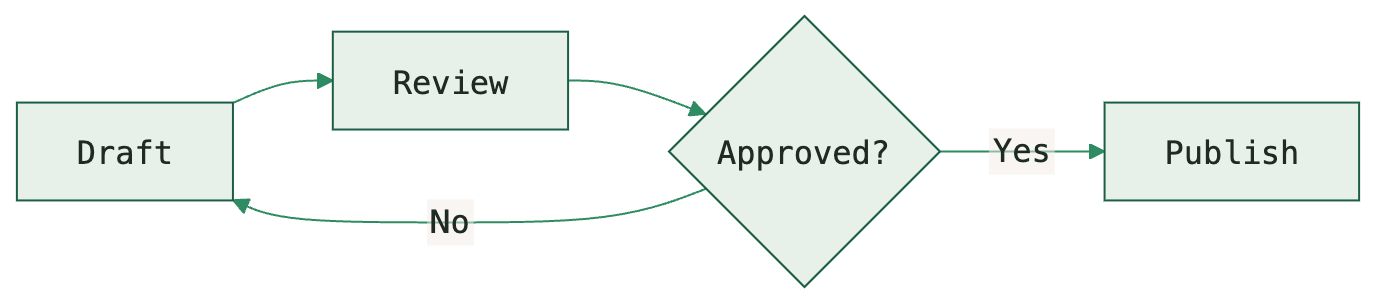
Try this PNG export example
Edit this Mermaid source in the converter, or download the exported example to inspect it in your target application.
mermaid-png-workflow.mmd%% Edit the steps and labels to match your workflow.
flowchart LR
A[Draft] --> B[Review]
B --> C{Approved?}
C -- Yes --> D[Publish]
C -- No --> A