Export Mermaid diagrams as SVG vector graphics instead of choosing a fixed pixel resolution. SVG keeps the diagram’s shapes, lines and text scalable, which makes it useful for websites, technical illustrations and design workflows. Paste your code, check the preview and download the file. SVG is selected when you open Export on this page. The file includes the diagram’s styling and uses a transparent background; conversion happens locally in your browser.
Vector outputShapes and lines scale without choosing a PNG pixel multiplier.
Transparent backgroundPlace the SVG on your page or design canvas and check the contrast.
Self-contained stylingThe exported file keeps Mermaid styles and references inside the SVG.
How to export a Mermaid diagram as SVG
- Paste Mermaid code, open a source file, or choose one of the free diagram templates.
- Inspect the live preview. Zoom into the labels and connections before downloading.
- Open Export. SVG is already selected on this page.
- Download the .svg file and open it in your browser or import it into your target application.
There is no 1×, 2× or 8× setting for SVG. Its vector geometry is independent of the preview zoom and can be displayed at different sizes.
Why choose SVG for a diagram that will be resized?
A PNG records a fixed grid of pixels. An SVG describes paths, shapes and text, so resizing its vector content does not require generating a higher-resolution bitmap. This is useful when the same diagram must appear in a narrow documentation column and a larger view. Keep the source code alongside the SVG so you can change the structure later. For applications that only accept raster images, export a Mermaid PNG with a suitable pixel resolution instead.
Embedding Mermaid SVG in a website
Save the exported SVG with your website’s other images and reference it from an image element. Preserve its aspect ratio and let the image width adapt to the available space. Add alternative text that describes the purpose of the diagram, rather than listing every node. An SVG embedded as an image is a rendered graphic; it does not need the Mermaid library to rebuild the diagram on your page. Keep important explanatory text in the surrounding document as well.
Transparent backgrounds and dark pages
The SVG is exported without adding a white background behind the diagram. That lets the surrounding page or design canvas show through. Transparency does not automatically recolor labels or lines to suit a dark interface. Check the actual result on the intended background: dark text may need a lighter container, or you may need to adjust the Mermaid styling. The preview uses a light paper surface, so it cannot show every possible background on which the SVG will be placed.
Taking an SVG into a design application
You can try importing the file into an SVG-capable application such as a vector editor or a design tool. How it represents text, markers and grouped shapes depends on that application’s SVG support. The converter preserves Mermaid styles inside the file, but it does not convert text into outlined paths or promise identical editing behavior in every importer. Check labels and arrows after import. Use the Mermaid source for structural changes; use your design application for changes to the imported graphic.
Styles, fonts and standalone files
The download includes an SVG root with explicit dimensions and a viewBox, plus the diagram’s embedded styles and internal references. It can be opened as its own image without the MarkDone webpage. Text uses a system monospace font stack; a recipient’s available fonts can change the appearance or metrics slightly. Fonts are not embedded or outlined in the SVG. If you need a fixed rendered picture with the same pixel appearance, choose PNG from the export menu.
Multiple diagrams and document exports
If your Markdown source contains several Mermaid blocks, SVG export produces one vector file for each diagram and downloads them together in a ZIP. It does not turn the surrounding Markdown into an SVG page. Choose Mermaid to PDF for printable documentation when the explanation, headings and diagrams should remain together. All three formats are available in this editor, so you can reuse the same source without switching tools.
Local conversion and editable starting points
The source is rendered and exported on your device. No diagram upload is required for conversion. Start from a flowchart, sequence diagram, database model, project plan, state diagram or mindmap in the Templates gallery, then edit the labels to match your own system. Undo template restores the previous editor state. SVG exports are included in the free allowance of three Mermaid exports per day across the format pages; Pro removes that limit. SVG has no paid resolution tier because it is already a vector format.
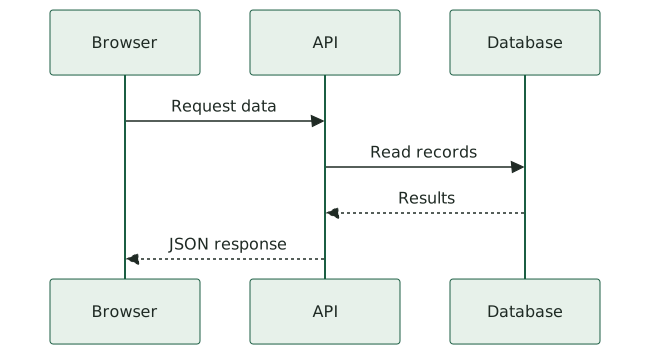
Try this SVG export example
Edit this Mermaid source in the converter, or download the exported example to inspect it in your target application.
mermaid-svg-api.mmd%% Rename the participants and messages for your API.
sequenceDiagram
participant Browser
participant API
participant Database
Browser->>API: Request data
API->>Database: Read records
Database-->>API: Results
API-->>Browser: JSON response