Mermaid Approval Workflow Example
Use this Mermaid approval workflow example to document how a request moves through review, revision, approval, and rejection. The flowchart includes the return path for requested changes, so it can serve as a practical starting point for a purchase request, content review, or internal sign-off process.
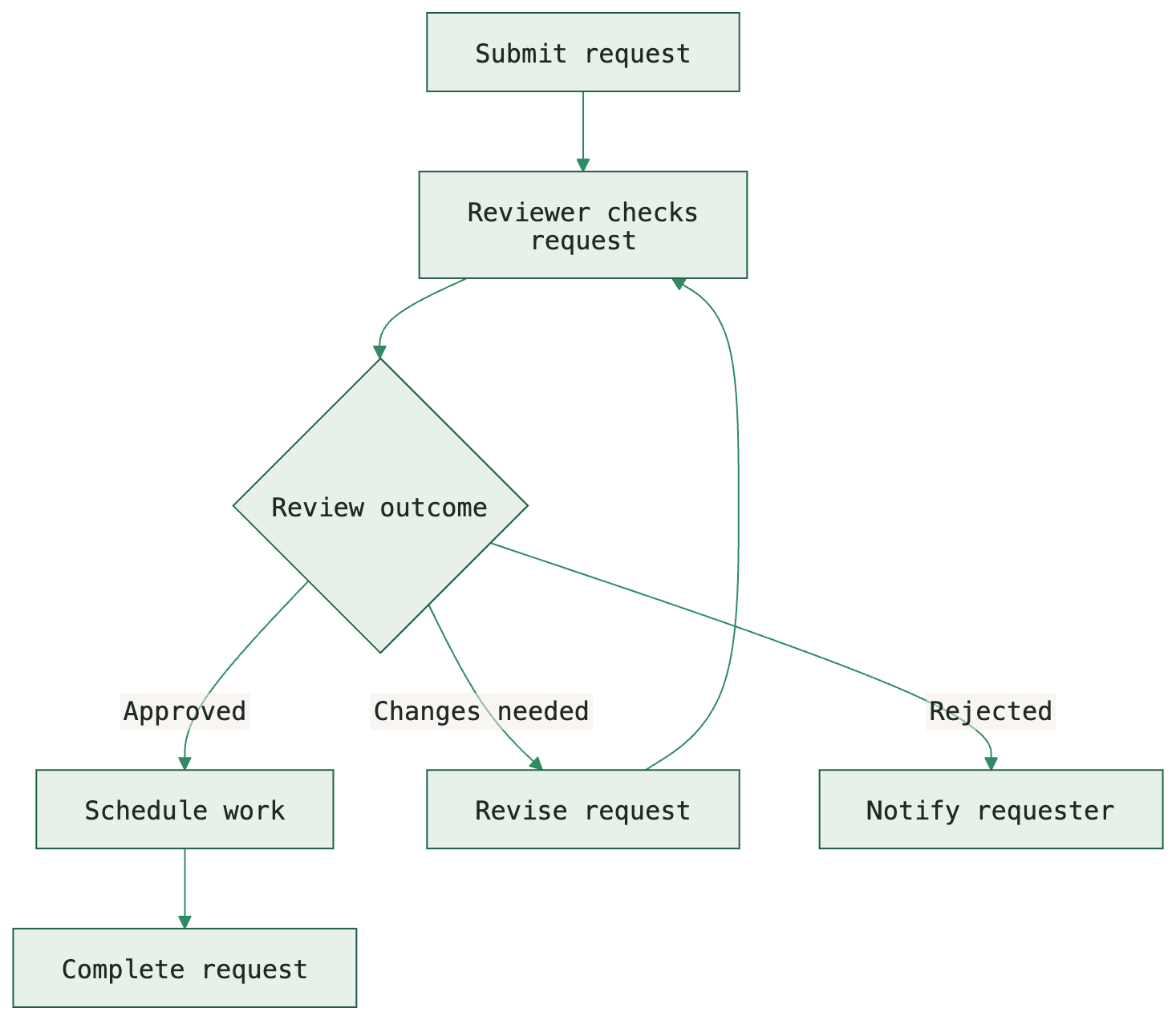
Open the template with its source already loaded, change it to match your workflow, and export in the format you need. Rendering and conversion run locally in your browser.
Copy the Mermaid source
Use this complete source in MarkDone or another Mermaid-compatible editor. Save the source alongside exported files so future changes remain straightforward.
flowchart TD
  A[Submit request] --> B[Reviewer checks request]
  B --> C{Review outcome}
  C -->|Approved| D[Schedule work]
  C -->|Changes needed| E[Revise request]
  E --> B
  C -->|Rejected| F[Notify requester]
D --> G[Complete request]Download Mermaid source (.mmd) · Download PNG · Download SVG · Download PDF
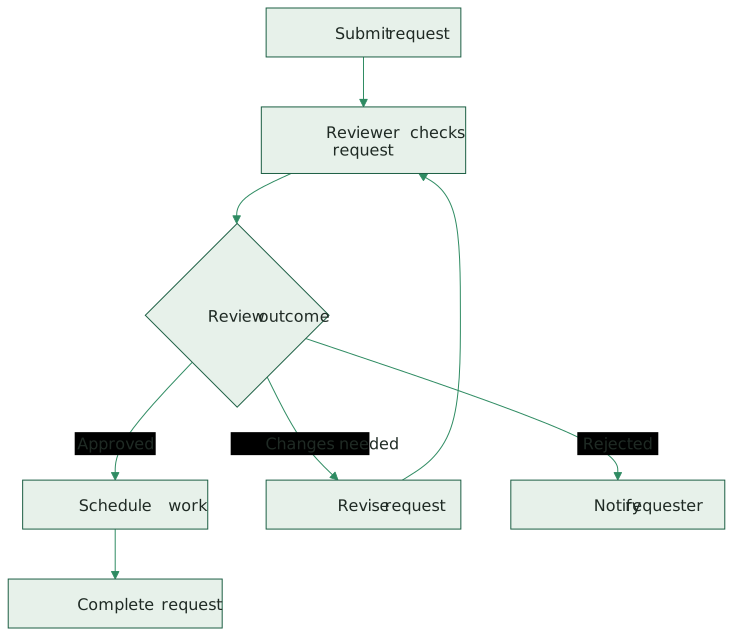
How this flowchart works
The requester submits the request before the reviewer makes a decision. Approval sends it to scheduling and completion. A request for changes goes back through revision and review. Rejection ends this version of the request with a notification to the requester. The three outcomes remain separate so readers do not confuse a revision request with a final rejection.
The declaration flowchart TD lays out the process from top to bottom. Square brackets create action nodes; braces create the decision diamond. Labels such as |Changes needed| explain the connector. The arrow from E back to B makes the review loop explicit.
Adapt the template to your project
- Rename the actions to match your actual review policy. For example, replace “Schedule work” with “Issue purchase order” for a procurement process.
- Add a second review stage if legal, finance, or another team must approve. Show sequential approvals as separate actions and decisions.
- Decide who receives a rejected request and whether a new request can be submitted. Add an explicit connector if rejection can restart the process.
After changing the code, check the preview before exporting. In particular, check that each branch reaches the intended outcome and that labels remain readable at the size your audience will use.
What to check before sharing
Keep the revision loop connected to review rather than to the approved outcome. If your process has only approval and changes, remove the rejection branch instead of leaving an outcome that nobody uses.
A flowchart is useful when the important information is the order of work and the choices that change its path. It does not assign owners or define an approval policy by itself; include those details in the accompanying documentation.
Choose PNG, SVG, or PDF
Use PNG when a slide, message, or application needs a fixed-resolution image. Use SVG for scalable artwork where the receiving application renders the labels correctly. Use PDF for a document attachment, print, or an explanation with accompanying Markdown. The downloads above use the same diagram in all three formats.
For resolution, fonts, and page-layout trade-offs, read Mermaid PNG vs SVG vs PDF. For document sizing and orientation, see how to avoid cropped or blurry Mermaid PDF exports.